

Every school leader knows the feeling. You approve a new curriculum management software platform. Then the worry sets in. What happens to years of course maps, pacing guides and lesson plans? Will they survive the move or will teachers start over from scratch?
You're not alone. Nearly half of all K-12 teachers adopt new instructional materials each year, per RAND Corporation's American Instructional Resources Survey. Platform changes are common. That doesn't make the fear smaller. Here's the good news. Edusfere is built to make this transition predictable. This guide walks through exactly how the migration works, step by step.
Key Takeaways
- Edusfere's team pulls your active course and unit maps directly from your previous system.
- Lesson plans are captured efficiently and enhanced with Edusfere's AI-assisted tool.
- Archived courses aren't included automatically. Reactivate them in your old system before migration starts.
- The platform supports multiple file formats - Word Docs, PDF to even a photo of a handwritten plan.
- The full migration path, from access to admin onboarding, typically runs about two weeks.
Before You Start: What to Prepare
A little prep work before your migration begins saves time once it's underway. Most delays come from waiting on information, not the migration itself. Migration moves faster when your team has these ready before Welcome & Setup:
- Your school logo
- A list of users and their roles (admin, teacher, etc.)
- Your standards framework information
- Domains that need to be whitelisted for Edusfere
- SSO or Microsoft integration details, if your school uses either
- Login access to your previous curriculum platform, if you're migrating course and unit data
Having these on hand up front means fewer back-and-forth emails once your migration window opens.
The Edusfere Curriculum Migration Journey
From the moment you sign on to the day teachers are planning lessons in Edusfere, the process follows a set path. Knowing what to expect ahead of time helps you plan staff time and set expectations across your team.
Edusfere's implementation process starts with the essentials including your users, school logo, standards frameworks and any SSO or Microsoft/Google integration details, so your account is ready before anyone logs in. If you're coming from another platform, this is also when you share access and Edusfere's team takes it from there, pulling your active course and unit maps across on your behalf.
From there, a short implementation call brings your team and Edusfere together to align on rollout, answer open questions and get admin and teacher onboarding sessions on the calendar. Training follows in two stages with admins going first, getting comfortable setting up and customizing the system, then teachers get hands-on time building real plans inside Edusfere with support close at hand.
Go-live isn't the finish line. Edusfere checks back in at one month, three months, end of year and back-to-school, so your team has support well past the first week.
Who Should Join the Implementation Call
Bring the people who will actually make setup decisions. This keeps the call efficient and avoids re-litigating choices afterward. Schools have brought anywhere from one person to a full leadership team; a smaller group tends to move faster. But if your school makes decisions collectively, include everyone who needs a say.
Training That Fits Your School's Size
Teacher training isn't a fixed template.The right format depends on how many teachers you're onboarding and how your staff is organized. Edusfere adapts the training format based on your staff size:
- Smaller schools typically train all teachers together in a single session.
- Larger schools (45+ teachers) often split training into two groups, commonly Elementary and Secondary, so each session stays focused and hands-on.
- Some schools opt for a pilot group first: A small "early adopter" team trains directly with Edusfere, then either leads training for the rest of staff or joins a second full-staff session later.
There's no single right approach. The best format depends on your team's size, schedule and how much hands-on support you want during rollout. This is one of the items covered on the Implementation Call, so you can plan a training structure that fits your school before onboarding begins.
What Curriculum Data Edusfere Migrates for You
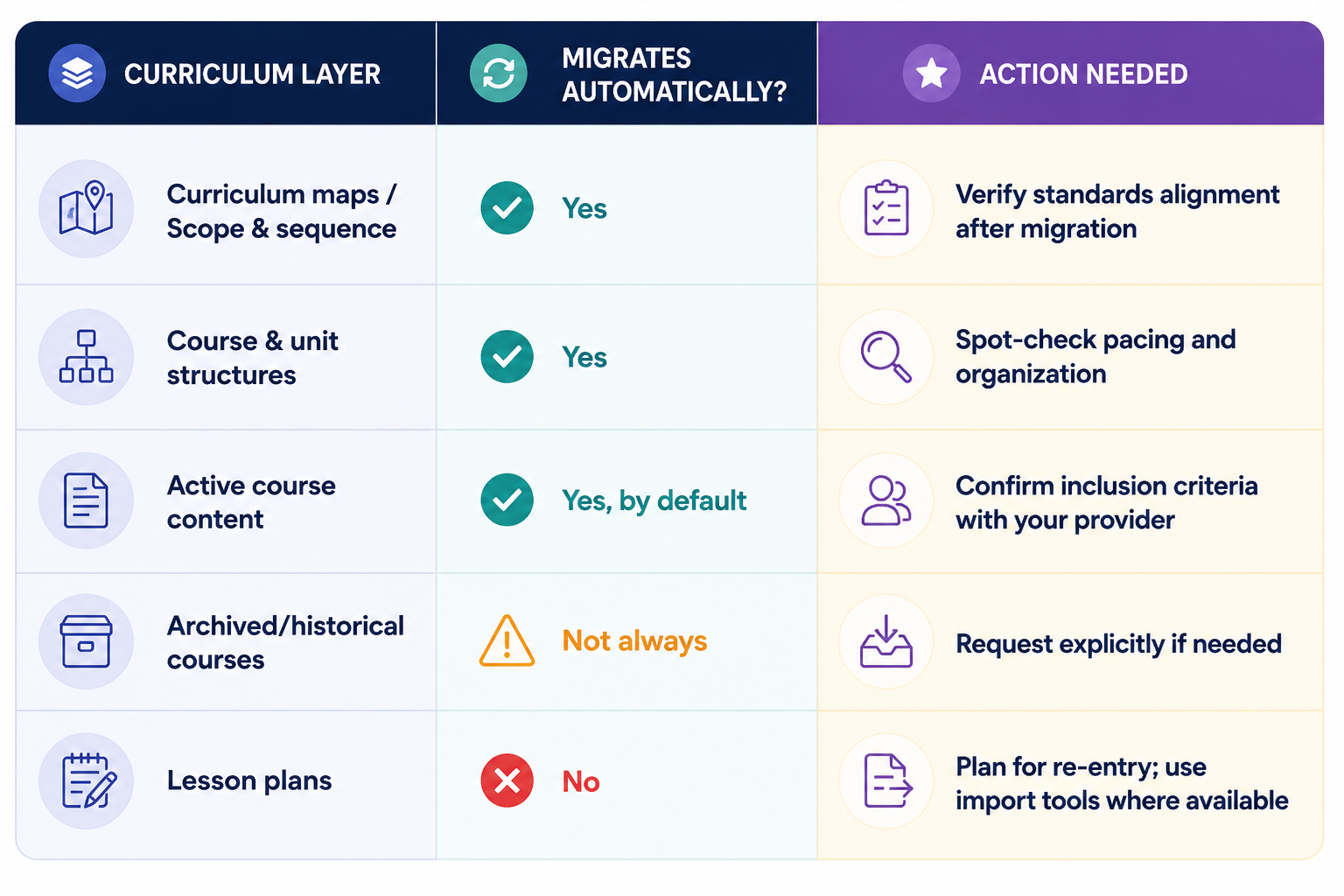
Course and unit maps are the layer Edusfere migrates directly. Once you share access to your previous system, Edusfere's team pulls your active course and unit maps courses, units, pacing and standards alignment into your new account. Edusfere can also bring data across from spreadsheets or internal documents, not just other curriculum management platforms.
Active vs. Archived Courses During Migration
Migration only pulls active courses. Archived or past-year courses aren't included automatically. Want an archived course preserved in Edusfere? Reactivate it in your previous system before migration starts. This is one item worth handling early, before your migration window opens.
How Lesson Plan Capture Works in Edusfere
No two teachers write lesson plans quite the same way, which is exactly why Edusfere puts teachers in charge of capturing their own. Edusfere's Lesson Importer makes that fast, accurate and genuinely easy. Here's how it works:
Bringing In an Existing Lesson Plan
Teachers don't need a specific file type or a clean template to get started. Inside the right unit, a teacher can upload almost anything they already have – a PDF, a Word doc, a slide deck, an image, even a photo of a handwritten lesson plan or pull one in from Google Drive or simply paste the text. From there, Edusfere reads the content and puts together a full draft including objectives, vocabulary, materials and activities, all organized and ready for review. The teacher checks it over, makes any adjustments and saves it once it's ready. Nothing goes live until they say so.
Building a New Lesson With Smart Assist
Starting from scratch works differently. A teacher names the lesson, adds objectives and vocabulary if they'd like, then describes an activity in a sentence or two. Smart Assist takes that description and drafts out the instructional steps, which the teacher can adjust, add materials to and save. It's built for the lessons that don't exist anywhere yet, turning a rough idea into a workable draft in a fraction of the time.
Either way, imported or built with Smart Assist, every draft comes back to the teacher for review before it's finalized. This is the core of Edusfere's approach to AI in curriculum management: Teachers decide. AI captures. Nothing walks out the door.
File Types and Standards Support for Curriculum Migration
Edusfere's import tools accept virtually any file type, with a copy-and-paste-as-text option for anything that won't upload directly. For standards, Edusfere aligns to your existing frameworks and supports custom standard sets, provided as CSV, XLSX or Google Sheets.
Are You Switching From CurriculumTrak?
Coming from CurriculumTrak? You won't pay more to make the switch. Edusfere matches your current year-one pricing, with further discounts in years two and three and migrates your course and unit maps at no additional cost.
Curriculum Migration Timeline: What to Expect
For migrations, Edusfere typically asks for about two weeks between getting access to your previous system and your admin onboarding call. That window gives the team time to pull your course and unit maps and get your account ready to review.
After You're Live: Don't Skip This Step
Here's one we hear about a lot. Your instructional period needs to be set up in the calendar before teachers can start planning. Skip this and teachers simply won't be able to use the planning calendar; no error message, no warning, just a locked door they didn't expect. The fix is easy. Just handle it during Admin Onboarding, not after. It takes about five minutes and it saves everyone a confusing first week.
Frequently Asked Questions
Does switching to Edusfere mean starting from scratch?
No. Your active course and unit maps transfer automatically. Lesson plans are the one layer teachers capture themselves, using Edusfere's Lesson Import or Smart Assist tools rather than typing everything from a blank page.
Will all our historical curriculum data be included?
Only active courses are pulled during migration. If you want an archived course preserved, reactivate it in your previous system before migration starts.
What file types can we import?
Virtually any file type works for lesson capture including PDFs, Word docs, PowerPoints, images, even a photo of a handwritten plan; plus Google Drive and paste-as-text options. Custom standard sets need CSV, XLSX or Google Sheets format.
How long does lesson plan capture take?
Each lesson typically takes a few minutes to import and review, not hours to rebuild. AI drafts objectives, vocabulary, materials and activities from what's uploaded; the teacher reviews and adjusts before marking it complete.
Who stays in control of instructional decisions during migration?
Teachers do. Edusfere's AI tools capture and organize what a teacher already wrote or described; they don't make instructional decisions on the teacher's behalf.
Ready to Switch to Edusfere?
The fear that started this guide, losing years of curriculum work in a platform switch, doesn't have to be the reality. With the right plan, your course maps and units move with you and your teachers get tools built to make lesson capture fast instead of dreaded.
If you're weighing a move to Edusfere, the best next step isn't more reading; it's seeing your own curriculum in the system. Book a demo and walk through what migration would actually look like for your school, with no commitment required.